


The EPFO member portal is your gateway to your EPF passbook, claims, nominations, and KYC management. But what happens when you simply cannot log in? UAN login failures are among the most common EPFO-related queries — and they are almost always fixable without an office visit. This guide covers every common login scenario and the exact steps to resolve each one.
Understanding UAN Login Requirements
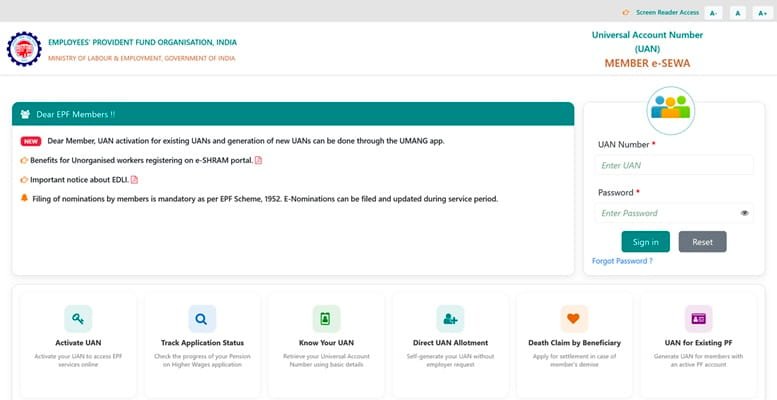
To log into the EPFO member portal (unifiedportal-mem.epfindia.gov.in), you need:
- Your UAN (12-digit number)
- Your portal password (set during first-time activation)
- Access to your registered mobile number (for OTP verification)
Problems arise when one or more of these elements is unavailable — forgotten password, changed phone number, unactivated UAN, or incorrect UAN itself.
Problem 1: Forgotten Password
Fix: Reset Password via Registered Mobile OTP
- Go to unifiedportal-mem.epfindia.gov.in
- Click “Forgot Password” below the login box
- Enter your UAN and captcha
- Click “Get Authorisation PIN” — an OTP is sent to your registered mobile number
- Enter the OTP and set a new password
Choose a strong password: at least 8 characters with one uppercase letter, one number, and one special character. EPFO passwords expire every 90 days in some portal configurations.
Problem 2: Registered Mobile Number Has Changed
This is a more complex situation because OTP verification requires your registered mobile number. If you no longer have access to it:
Option A: Through Your Employer
- Request your employer to update your mobile number on the EPFO employer portal
- The employer goes to Member > Member Details > Update Mobile Number in their portal
- Once updated, you can use the new number for OTP and password reset
Option B: Through the EPFO Member Portal (Self-Service)
- On the EPFO member portal, click “Activate UAN” (even if already activated)
- Enter your UAN, Aadhaar number, new mobile number, date of birth, and captcha
- Verify via Aadhaar OTP (sent to your Aadhaar-linked mobile number)
- This re-activates your UAN with the new mobile number
Note: This only works if your Aadhaar-linked mobile number is accessible, even if your previously registered EPFO mobile number is not.
Problem 3: UAN Not Activated
If your employer has generated your UAN but you have never activated it, you cannot log in.
Fix: Activate UAN for the First Time
- Go to unifiedportal-mem.epfindia.gov.in and click “Activate UAN”
- Enter your UAN, Aadhaar, mobile number, date of birth, and captcha
- Verify via OTP sent to your Aadhaar-linked mobile number
- Set your password — UAN is now active
Problem 4: Do Not Know Your UAN
You cannot log in without your UAN. Retrieve it through:
- Check your payslip or appointment letter — your employer is required to mention UAN
- Visit the EPFO portal and click “Know Your UAN Status” — enter your Aadhaar, PAN, or registered mobile number
- The system sends your UAN to your registered mobile via OTP
- Contact your HR team — they have your UAN in their EPFO employer portal records
Problem 5: Account Locked After Multiple Failed Attempts
After 5 consecutive wrong password attempts, the EPFO member portal locks the account temporarily (typically for 30 minutes to 1 hour). After the lockout period, use the “Forgot Password” option to reset — do not attempt further password guesses.
If your account keeps getting locked and you did not attempt those logins, your account may be compromised. Change your password immediately using Aadhaar OTP verification and update your registered mobile number.
Problem 6: Portal Error Messages
“Your UAN is linked to more than one mobile number”
This error appears when there is a data inconsistency in EPFO’s backend. Raise a grievance on EPFIGMS or call EPFO helpline 1800-118-005 with your UAN details.
“Invalid UAN or Password” Despite Correct Credentials
This can happen due to portal cache issues. Clear your browser cache, try a different browser (Chrome or Firefox typically work best), or try from the UMANG app instead of the browser.
“Session Expired”
EPFO portal sessions expire after 10-15 minutes of inactivity. Log in again. For lengthy transactions like KYC updates, work without taking long breaks.
UMANG App as an Alternative Access Point
If the EPFO member portal is giving persistent errors, the UMANG app on your smartphone provides the same services — passbook, claims, KYC management — through a separate interface that is often more stable.
- Download UMANG from the App Store or Google Play
- Search “EPFO” within the app
- Log in with your UAN and portal password (same credentials)
Frequently Asked Questions
Q: My EPFO password reset OTP is not arriving. What should I do?
A: Ensure your registered mobile number is active and can receive SMS. EPFO OTPs are sent from government SMS services which are occasionally delayed by network congestion. Wait 5 minutes and retry. If still not received, check if your number has a DND (Do Not Disturb) service block on promotional messages — some carriers block transaction OTPs under strict DND settings. Contact your telecom provider to whitelist government SMS codes.
Q: Can I use my Aadhaar number instead of UAN to log in?
A: No. The EPFO member portal requires UAN for login — Aadhaar alone does not work as a login credential. However, you can use your Aadhaar to retrieve your UAN via the “Know Your UAN” feature, or use it for Aadhaar OTP-based password reset and UAN activation.
Q: I get a “This site cannot be reached” error for the EPFO portal. Is it down?
A: Periodically, EPFO portals undergo maintenance, particularly on weekends and month-end periods. Check the EPFO social media handles or the epfindia.gov.in homepage for maintenance announcements. As an alternative, use the UMANG app or the missed-call balance service (9966044425) for basic access.
Q: Can I log in to EPFO portal from outside India (as an NRI)?
A: Yes. The EPFO member portal is accessible from any internet connection globally. If your Aadhaar-linked mobile number is an Indian number that is now inactive or not receiving SMS abroad, update your mobile number with your employer or use a current Indian mobile number via Aadhaar re-verification before travelling.
Q: My employer gave me a UAN but the activation keeps failing. What is wrong?
A: Activation failure usually means the details you are entering (Aadhaar, date of birth) do not match what the employer entered in the EPFO portal. Confirm with your HR the exact name and date of birth recorded in the EPFO system. If there is a mismatch, the employer needs to correct it in the employer portal before activation will succeed.